
How to Preview a Single Section
Learn how to generate and listen to an audio preview for individual script sections before exporting the full session.
Prerequisites
- •An existing script with at least one section filled out
- •A voice selected in the editor
- •Sufficient credits for preview generation
Step-by-Step Guide
Open Your Script in the Editor
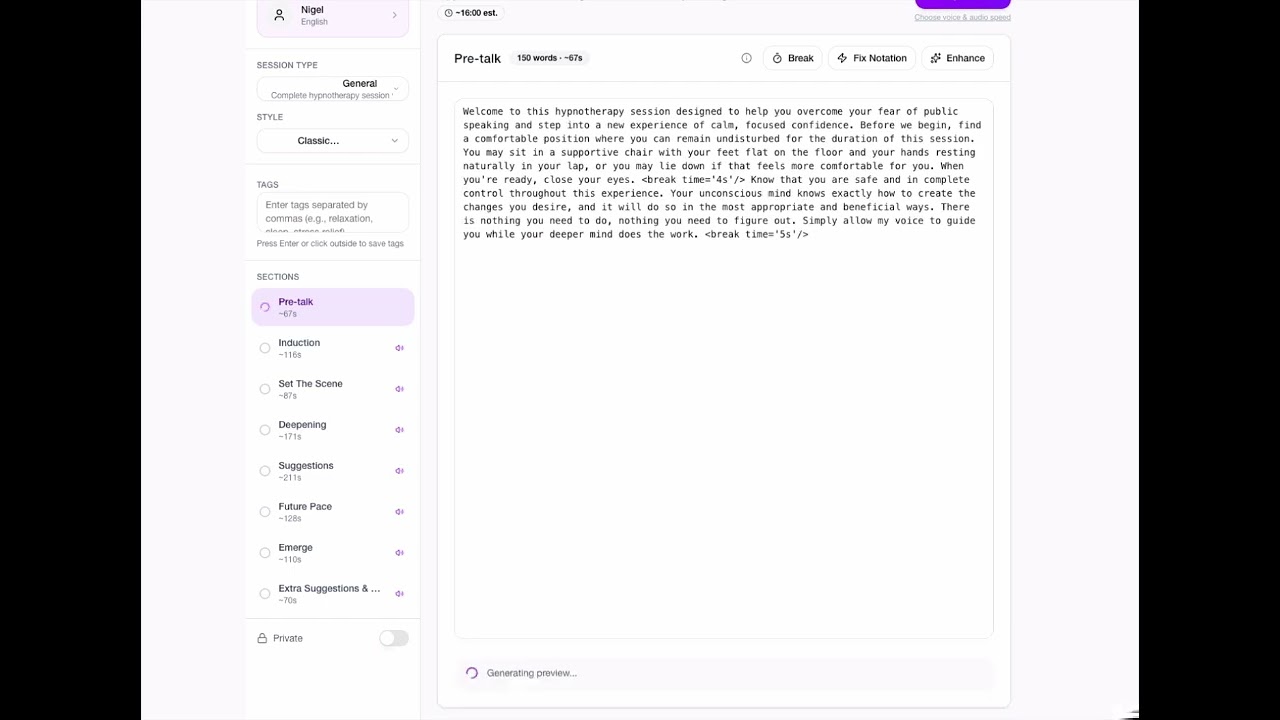
Navigate to your script and open it in the editor. You'll see all your script sections displayed as tabs along the top (Pre-talk, Induction, Deepening, etc.).
Select a Voice
Before generating a preview, you need to select a voice. Click the voice selector in the editor header to choose your preferred AI voice. Changing voices later will invalidate any existing previews.
Navigate to the Section You Want to Preview
Click on the section tab you want to hear. The editor will show that section's content along with a word count and estimated duration badge.
Click the Preview Button
Look for the purple 'Preview' button in the section toolbar (next to Enhance and Fix Notation). It shows the credit cost based on the section's estimated duration. Click it to start generating.
Wait for Generation
A loading spinner will appear while the preview is being generated. This typically takes 15-30 seconds depending on section length. You can continue editing other sections while you wait.
Listen to the Preview
Once ready, an audio player appears below the editor with play/pause controls, a progress bar, and word-by-word highlighting that follows along as the audio plays. Use this to check pacing, pronunciation, and overall feel.
Edit and Regenerate if Needed
If you edit the section text after generating a preview, it becomes 'stale' and a 'Regenerate' button appears in amber. Click it to generate an updated preview reflecting your changes.
Tips & Best Practices
- Preview individual sections to fine-tune pacing before committing to a full audio export
- The word-by-word highlighting helps you spot sections where the AI voice rushes or pauses unexpectedly
- Previews cost credits based on section duration — shorter sections cost less, so preview those first
- If you change voices, all existing previews are cleared since the audio would sound different
- Use previews to compare how [break], [long-break], and emotion cues sound before generating the full session
Troubleshooting
Problem: Preview button doesn't appear
Solution: Make sure you've selected a voice first and that the section has some text content. The Preview button only shows when both conditions are met and no preview exists yet for that section.
Problem: Preview shows as 'stale' after editing
Solution: This is expected behavior. When you edit a section's text, the existing preview no longer matches. Click the amber 'Regenerate' button to create an updated preview.
Problem: Not enough credits for preview
Solution: Each preview costs credits based on the section's estimated duration (roughly 1 credit per minute). Try previewing shorter sections first, or purchase additional credits.
Problem: Preview audio sounds different from the full export
Solution: Previews use the same voice and TTS engine as full exports. Minor differences may occur in transitions between sections, but individual section audio quality is identical.
Related Tutorials
How to Generate Audio from Your Script
Learn how to transform your written hypnosis script into high-quality audio with natural-sounding AI voices.
How to Control Audio Speed for Your Sessions
Learn how audio speed works in Hypnothera — from automatic optimization to full manual control. Slower audio creates deeper relaxation; faster audio works for energizing sessions.
How to Add Pauses to Your Script
Learn the correct way to add pauses and breaks in your hypnosis scripts for predictable, professional audio pacing.
How to Use Emotion Cues Effectively
Learn where to place Fish emotion, tone, and expression cues in hypnosis scripts so the generated voice sounds natural and intentional.
How to Use Magic Enhance
Discover how to use the Magic Enhance feature to improve and refine your hypnosis script sections with AI assistance.