How to Listen to Your Generated Audio
Master the audio player features and learn how to listen to, manage, and download your generated hypnosis sessions.
Prerequisites
- •A generated audio file
- •Signed in to your account (for private sessions)
Step-by-Step Guide
Access Your Audio Library
Navigate to the 'Library' section from the main menu. Here you'll see all your generated audio sessions. You can also access public sessions from the 'Listen' page.
Select Your Audio Session
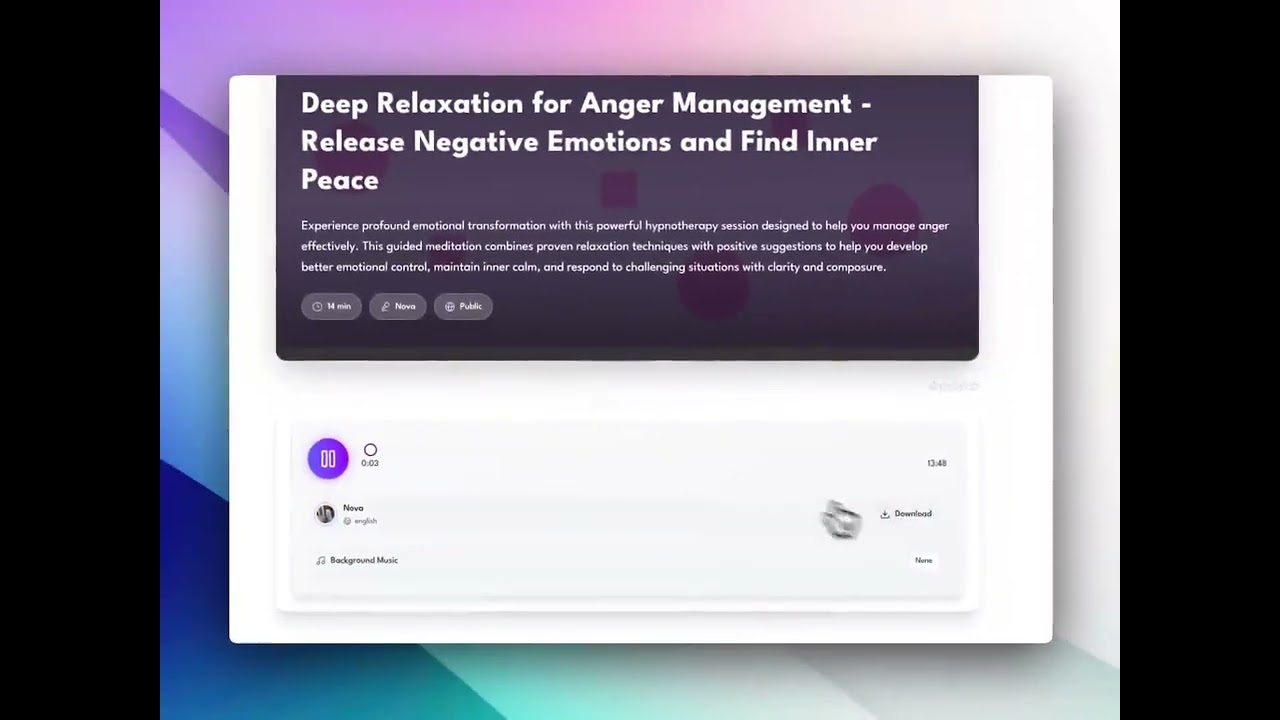
Click on the audio you want to listen to. You'll be taken to the dedicated listen page for that session, which includes the audio player and session details.
Understand the Player Interface
The audio player shows the session title, duration, and playback controls. You'll see a play/pause button, progress bar, volume control, and playback speed options.
Prepare Your Environment
Before starting, find a quiet, comfortable place where you won't be disturbed. Use headphones for the best experience. Make sure you're in a safe position (sitting or lying down).
Start Playback
Click the play button to begin your session. The audio will play from the beginning. You can see the current time and remaining time on the progress bar.
Use Playback Controls
You can pause at any time by clicking the pause button. Skip forward or backward using the seek controls. Adjust volume as needed. The playback speed option allows you to slow down (0.75x, 0.5x) for deeper relaxation or speed up (1.25x, 1.5x) for review.
View Session Information
Below the player, you'll find the complete script text, session details, voice information, and background music used. This helps you understand what to expect during the session.
Download for Offline Use
Click the download button to save the audio file to your device. This allows you to listen offline, on other devices, or import into your preferred audio player app.
Manage Your Sessions
From the library, you can organize sessions, mark favorites, delete old sessions, or regenerate audio with a different voice or background music.
Tips & Best Practices
- Always listen in a safe environment where you can relax completely - never while driving or operating machinery
- Use good quality headphones for the best immersive experience
- Set your phone to Do Not Disturb mode before starting a session
- Start with shorter sessions (10-15 minutes) if you're new to hypnosis
- Listen to the same session multiple times (daily for 21-30 days) for best results
- Some people prefer listening before bed, others during breaks - experiment to find your best time
- Download your favorite sessions so you can listen even without internet connection
Troubleshooting
Problem: Audio won't play or shows 'forbidden' error
Solution: Ensure you're signed in to your account. Private sessions require authentication. Check your internet connection. Try refreshing the page. If the issue persists, the audio file may need to be regenerated.
Problem: Audio stutters or buffers frequently
Solution: This is usually due to slow internet connection. Try downloading the audio file for offline playback. Close other browser tabs to free up resources. Consider using a wired connection instead of WiFi.
Problem: Can't hear the audio or volume is too low
Solution: Check your device volume settings. Ensure the player volume slider is turned up. Try using headphones. If using Bluetooth, check the connection. Some audio files may have lower volume - you can download and amplify using audio software.
Problem: Download button doesn't work
Solution: Check your browser settings to ensure downloads are allowed. Try right-clicking the download button and selecting 'Save Link As'. Some browsers block automatic downloads - you may need to approve it.
Problem: Audio plays too fast or too slow
Solution: Check the playback speed setting on the player - it should be set to 1.0x for normal speed. Some browsers have their own playback speed controls that may override the player settings.
Related Tutorials
How to Generate Audio from Your Script
Learn how to transform your written hypnosis script into high-quality audio with natural-sounding AI voices.
How to Create Your Hypnosis Session
Learn how to create a personalized hypnosis script with the guided creator. A few quick choices and a short brief turn into a full, editable session.
How to Control Audio Speed for Your Sessions
Learn how audio speed works in Hypnothera — from automatic optimization to full manual control. Slower audio creates deeper relaxation; faster audio works for energizing sessions.